Replace a Report
Replace an outdated Power BI report with a new one inside an existing reportbook while retaining page references and bookmarks.
play_circle Video Walkthrough
When to Use This Feature
Use Replace Report when a published Power BI report has been superseded by a new version and you need the reportbook to point at the new source without rebuilding every page.
Step 1: Access Replace Report
- Open the reportbook home page.
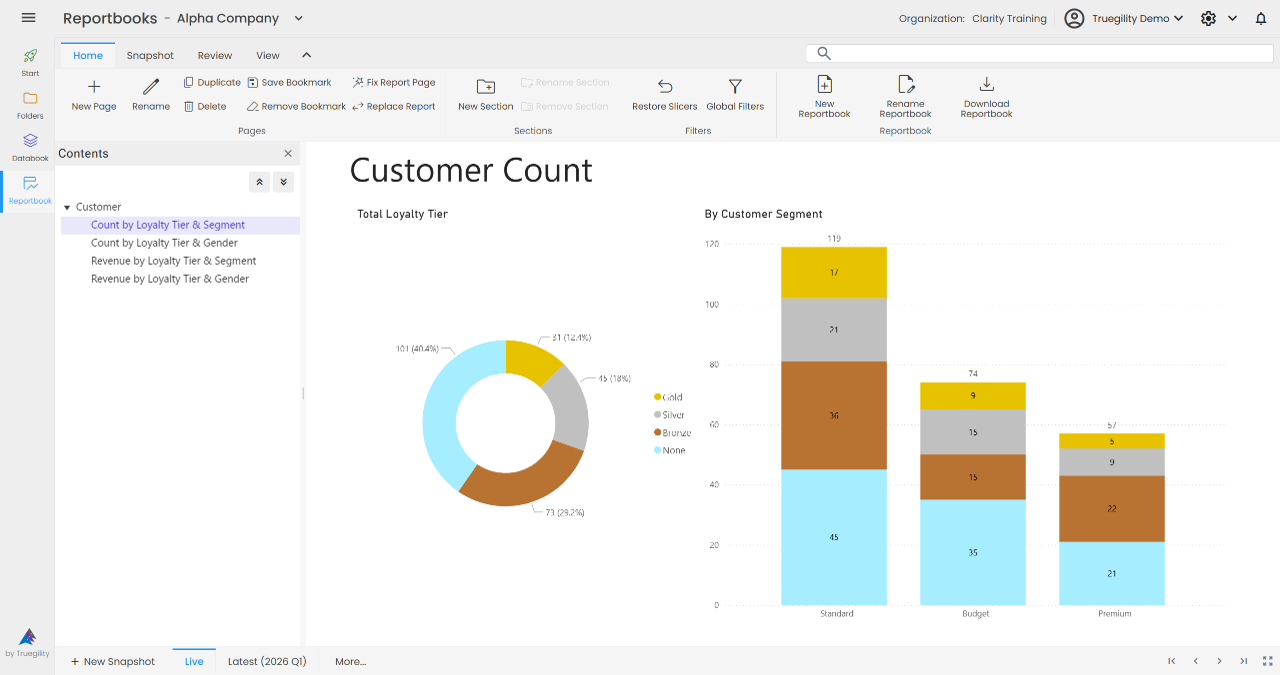
- Go to the Pages section.
- Click Replace Report.
Step 2: Select the Workspace and New Report
- Select the workspace that contains the replacement report.
- Select the new report.
- Use replace all occurrences if you want every matching page updated in one pass.
Key Concept. Only pages that were created from the replaced report will change. Pages sourced from other reports remain untouched.
Step 3: Verify the Replacement
- Wait for the new report template to load.
- Review the home page.
- Open the other pages that used the old report.
Result: Those pages now use the new report template while bookmark references remain intact.
Key Takeaways
- Replace Report updates report references without forcing you to rebuild the reportbook page by page.
- Use the replace-all option when consistency matters across many pages.
- Only pages tied to the replaced source report are updated.
- Bookmarks stay in place during the replacement.
- Review the updated pages immediately so you can catch template or source mismatches early.
v3.0 | 20260402