Global Filters Across Reports
Use global filters when a reportbook includes pages from more than one report and you need one consistent filter state across all of them.
play_circle Video Walkthrough
Step 1: Understand Filter Scopes in Power BI
Power BI gives you three standard scopes:
- Visual for one chart or visual.
- Page for every visual on the current page.
- Report for every page inside one report.
Reportbooks add a fourth scope: Global Filters, which operate above the report level.
Step 2: Recognize When You Need Global Filters
Standard report-level filters only affect the report they belong to. If your reportbook mixes pages from multiple source reports, those filters will not carry across the report boundary. That is the gap global filters solve.
Step 3: Apply a Global Filter
- Open the global filter control in the reportbook.
- Select the field, such as Loyalty Tier.
- Select the value, such as Gold.
- Apply the filter.
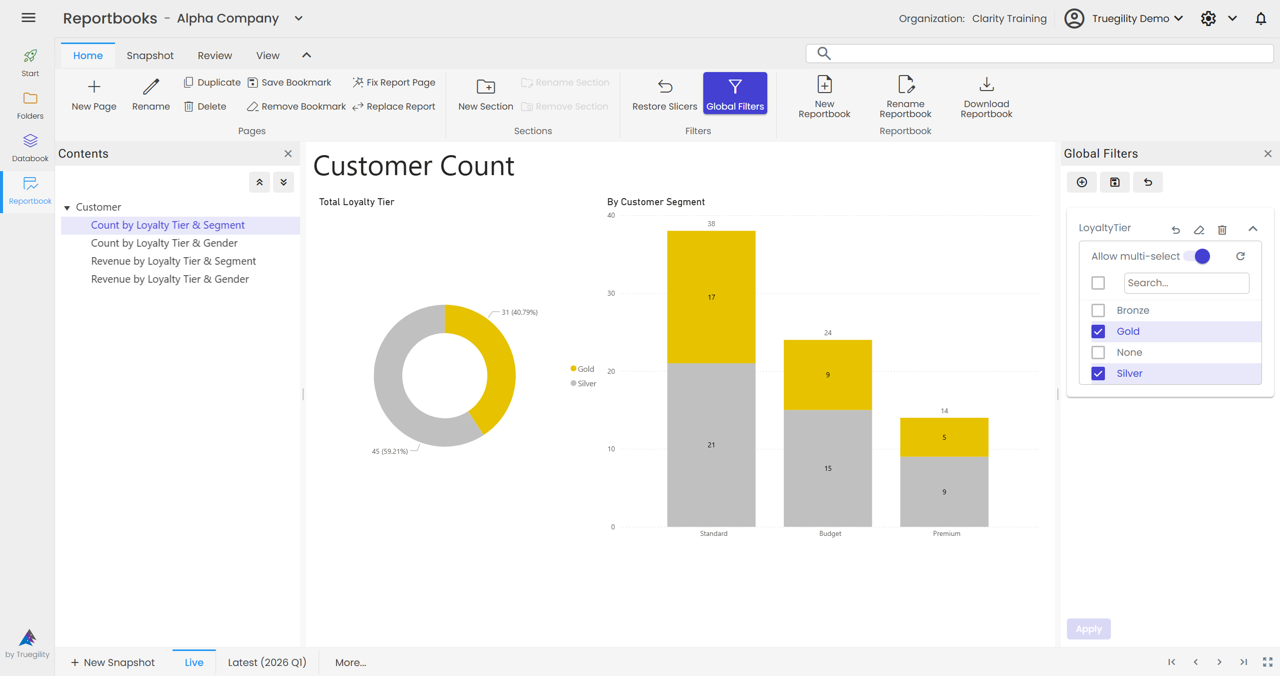
Step 4: Verify the Filter Across Reports
Move from a page in Report A to another page in Report A, then to pages in Report B. The selected filter should remain active across the whole reportbook.
See also. Create a Reportbook & Add Pages explains the initial setup flow for global filters and saved defaults.
Key Takeaways
- Global filters work above individual report boundaries.
- They are the right choice when one reportbook combines pages from more than one source report.
- Users set one filter once instead of maintaining separate filters report by report.
- The result is a more consistent experience across the entire reportbook.
v3.0 | 20260402