Hierarchy Sorting in Power BI
Use the order columns that Clarity generates from a hierarchy so labels in Power BI follow business order instead of alphabetical order.
play_circle Video Walkthrough
The Problem
Power BI sorts text labels alphabetically by default. That can produce the wrong business sequence, such as Bronze, Gold, None, Silver instead of Gold, Silver, Bronze, None.
Step 1: Identify Sort Order Columns in Power BI
When you import a Clarity databook table into Power BI, any field used in a hierarchy comes with a matching order column.
- Loyalty Tier becomes Loyalty Tier Order.
- Customer Segment becomes Customer Segment Order.
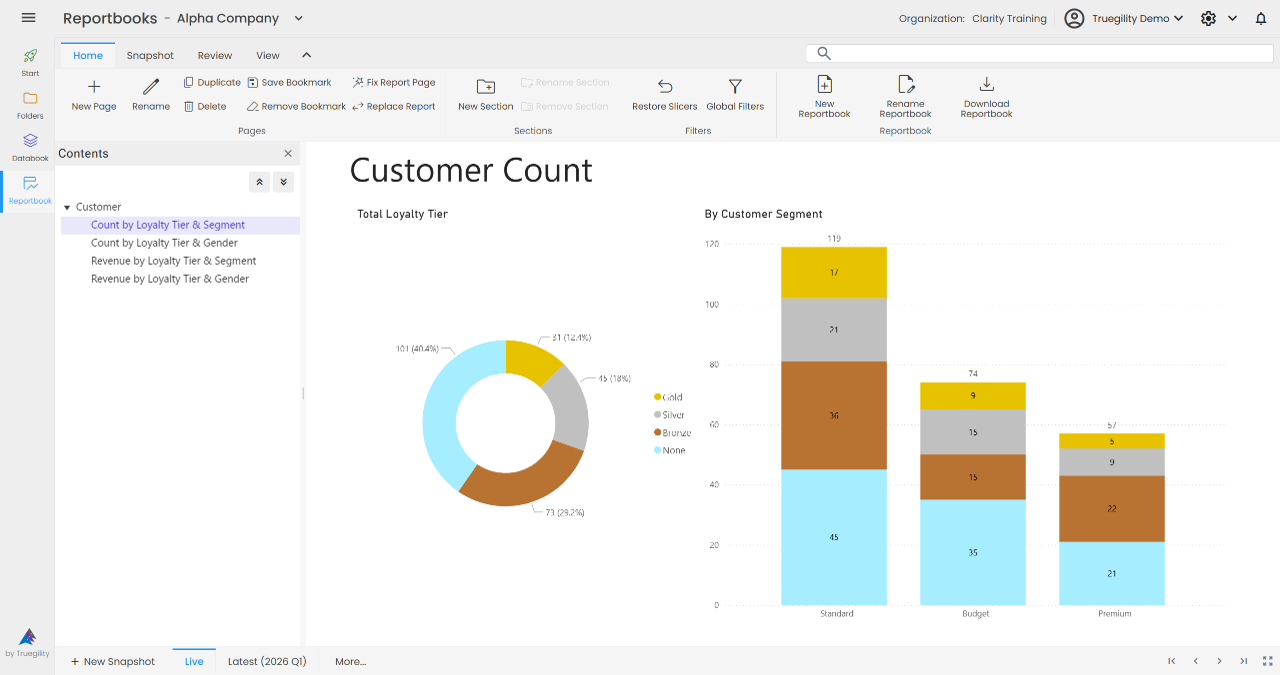
Step 2: Apply Sort by Column in Power BI
- Select the dimension field you want to sort.
- Choose Sort by Column.
- Select the corresponding order column.
Note. Power BI will now use the numeric order column instead of alphabetical text order.
Step 3: Customize Sort Order in Clarity Databooks
- Open the hierarchy in Clarity Databooks.
- Review the current member order.
- Drag members into the sequence you want.
- Save the updated hierarchy.
If the order in Power BI is still wrong, the fix belongs in Clarity first, not in the Power BI visual.
Step 4: Refresh Power BI
Return to Power BI and run Refresh or Refresh All. After the model refresh finishes, visuals pick up the new order from the hierarchy order columns.
Key Takeaways
- Hierarchies in Clarity automatically create matching order columns in Power BI.
- Use Sort by Column on the business label, then choose the generated order field.
- Manage the desired sequence in Clarity, not in each individual Power BI visual.
- Refresh Power BI after hierarchy changes so the new order reaches the model.
- See Table Hierarchies if you need to create or edit the hierarchy first.
v3.0 | 20260402