Table Hierarchies
Create custom hierarchy views for the same table so users can order values logically, rename labels consistently, and filter records from a hierarchy tree.
play_circle Video Walkthrough
Step 1: Access Hierarchy Settings
- Open a databook and select the table you want to organize.
- Review the current hierarchy option.
Every table starts with a Flat List view. That shows the order in which records were imported or entered manually.
Step 2: Create Your First Hierarchy
- Open the Design Ribbon.
- Choose Settings.
- Open the Hierarchies tab.
- Click Add.
- Name the hierarchy, such as Segment and Tier.
- Add the fields you want in the hierarchy.
- Click Save.
Result: The new hierarchy appears alongside the flat list option.
Step 3: Create Additional Hierarchies
Repeat the same process if you need multiple perspectives on the same data. Each hierarchy can group fields differently without changing the underlying rows.
Step 4: Edit Hierarchy Value Order
- Click Edit Values to return to the databook view.
- Drag values into the business order you want.
- Repeat for child levels such as tiers or categories.
When you move a value in one branch, Clarity applies that order everywhere the same hierarchy member appears.
Step 5: Rename Hierarchy Values
- Select the value in the hierarchy tree.
- Edit the label directly.
- Confirm the change.
Result: Clarity propagates the new label to all matching data rows. For example, renaming notier to none updates every row using that value.
Step 6: Filter Data Using the Hierarchy Tree
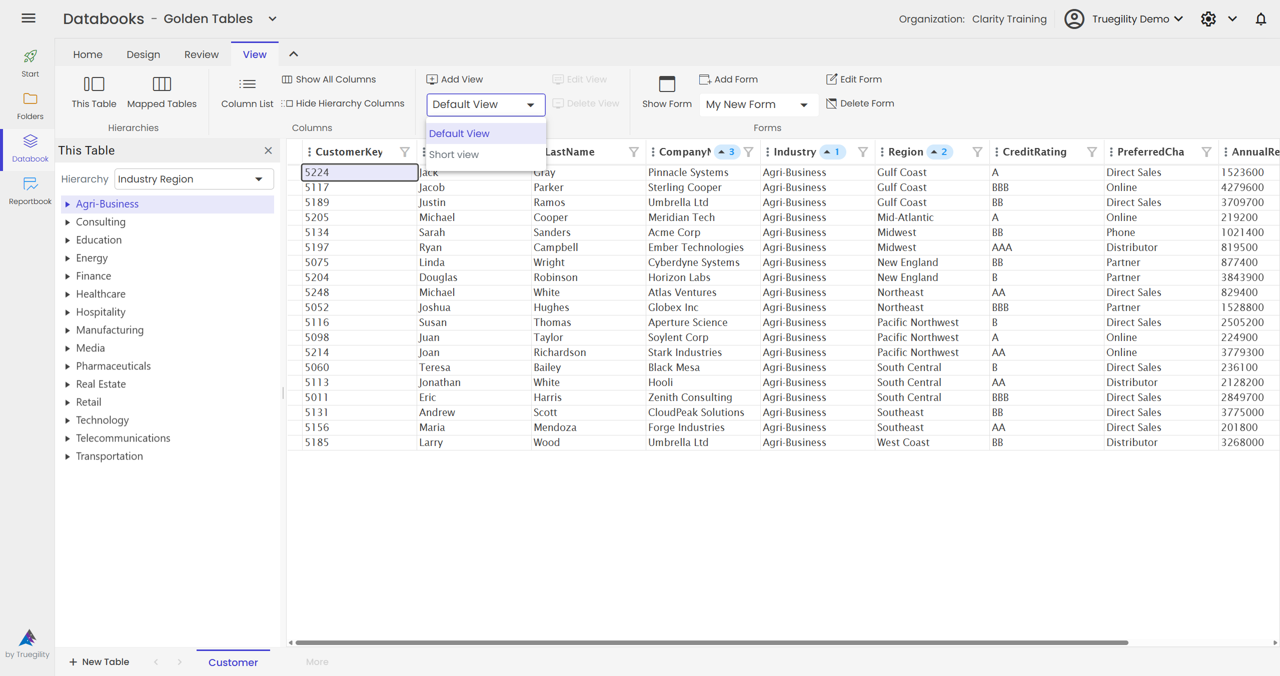
Click a node in the hierarchy tree to filter the table. You can also filter at multiple levels:
- Select a top-level category such as Premium.
- Select a child value such as Silver.
- The table shows only rows that match both conditions.
Key Takeaways
- Create hierarchies from Design Ribbon, Settings, and the Hierarchies tab.
- Use multiple hierarchies when one table needs more than one business view.
- Drag members into the right order and Clarity reuses that order consistently.
- Rename labels directly in the tree and Clarity updates the underlying rows.
- Filter from the hierarchy tree to focus the table on exactly the segment you need.